Record your screen. It edits itself.

Zooms, a gliding cursor and captions, plus both sides of every call.

Download free trial
Version
0.1.0
Disk image
6.3 MB
Needs
macOS 26, Apple silicon
Real exports from Recora: the zooms, the cursor and the framing are added by the app.

Recording, in one shortcut.

Press ⌘⇧2, pick what to capture, and give the demo.

The capture bar: close, Display, Window, Area and Device, then FaceTime HD Camera, Microphone, Sound from computer and Record
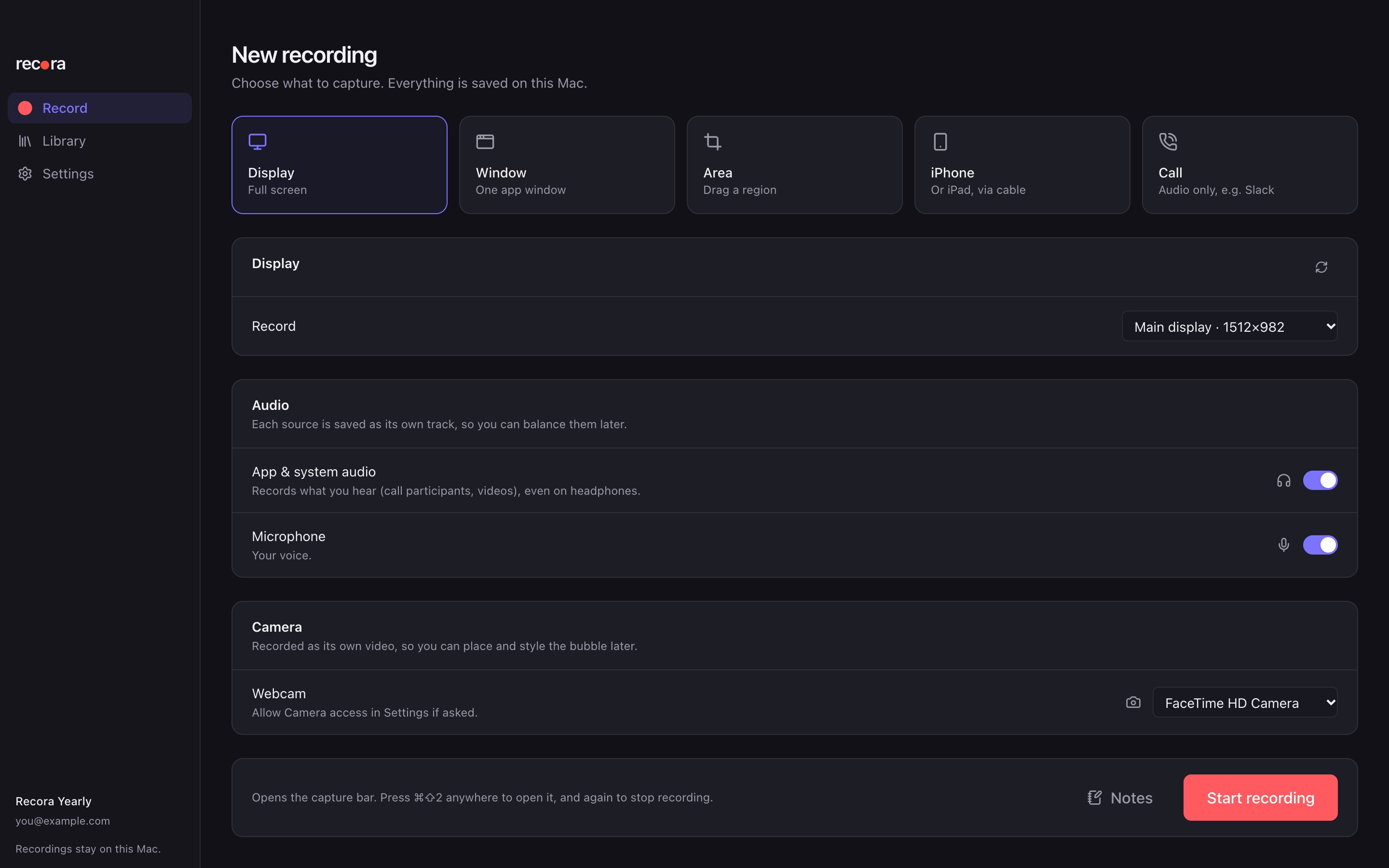
Recora’s recorder: Display, Window, Area, iPhone and Call sources, with app audio and microphone switched on
Capture
A display, a window, an area, or an iPhone over a cable
Start
⌘⇧2 opens the capture bar from any app, or use the menu bar
Calls
Notices Google Meet, Zoom, Teams, Slack and FaceTime calls and offers to record
While recording
A countdown, then pause and resume
Sound
Your Mac’s audio and your microphone, each on its own track
Camera
Its own video, placed as a bubble later

The editor does the first pass.

Open a recording and it is already zoomed, smoothed and framed.
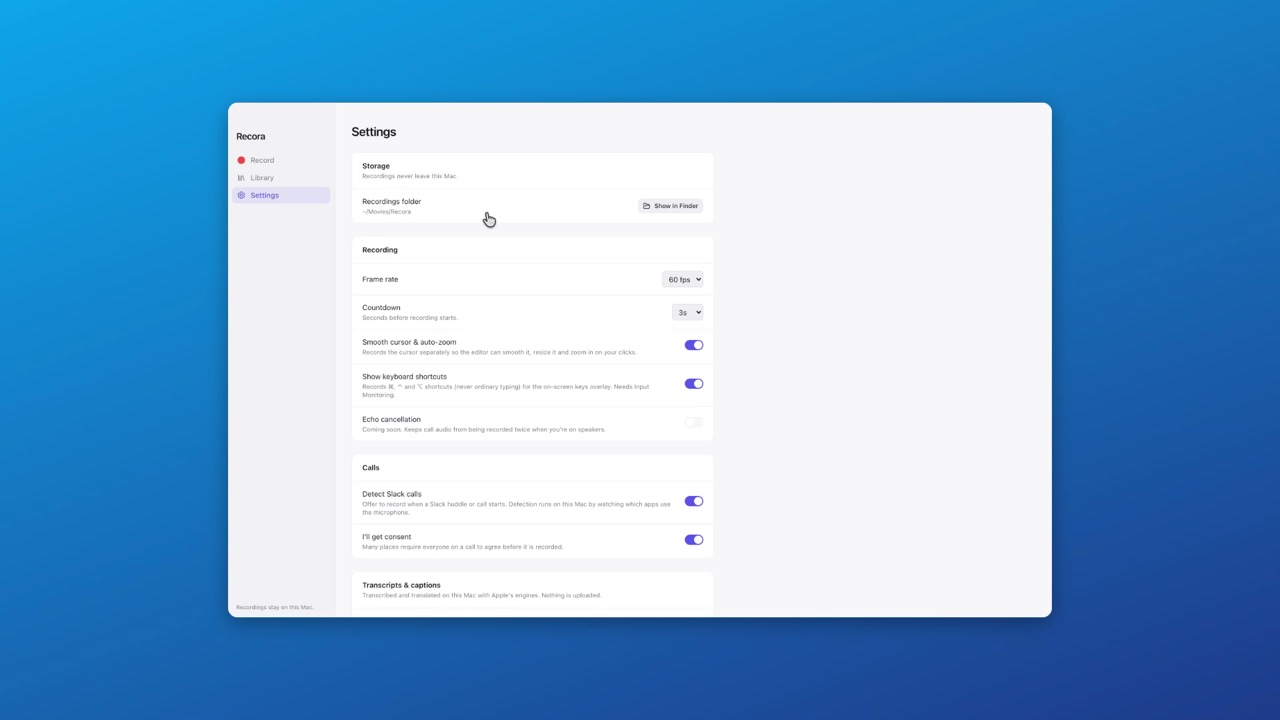
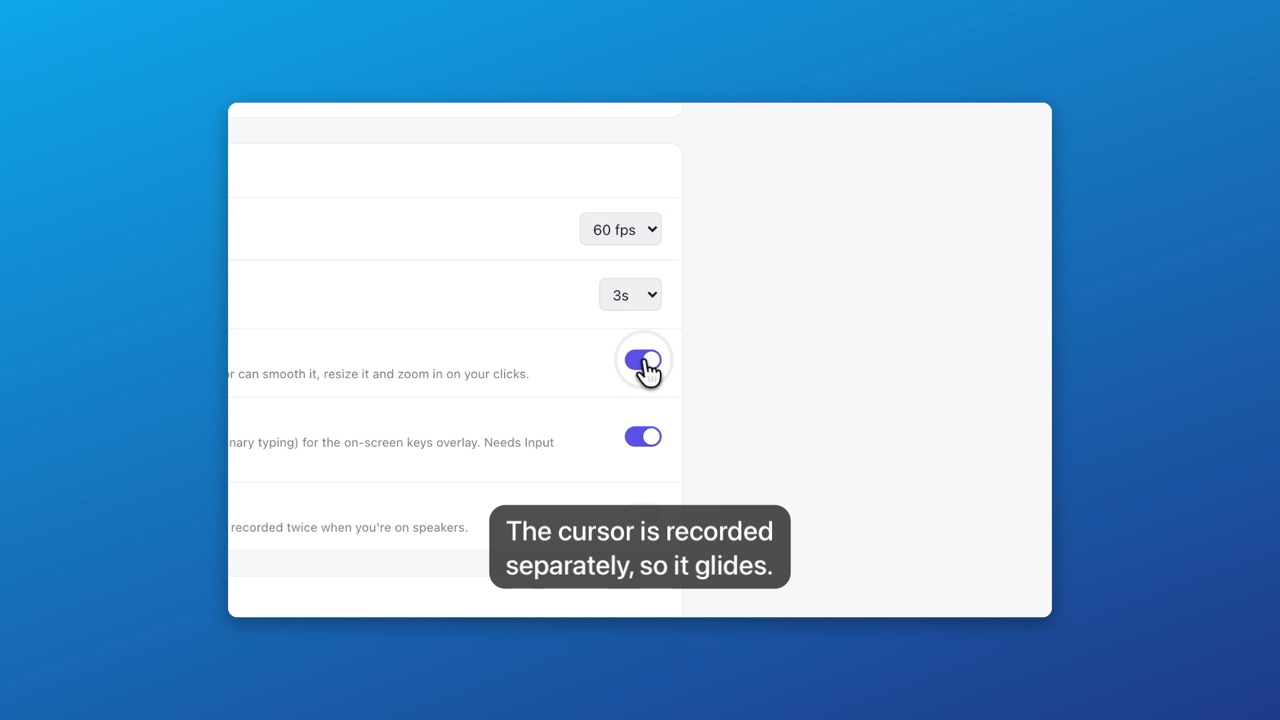
An exported frame before the zoom: the whole Settings window on a blue background The same export a moment later, zoomed in on the clicked switch, with a caption
Zooms where you click. Planned from your clicks. Move one or add your own.
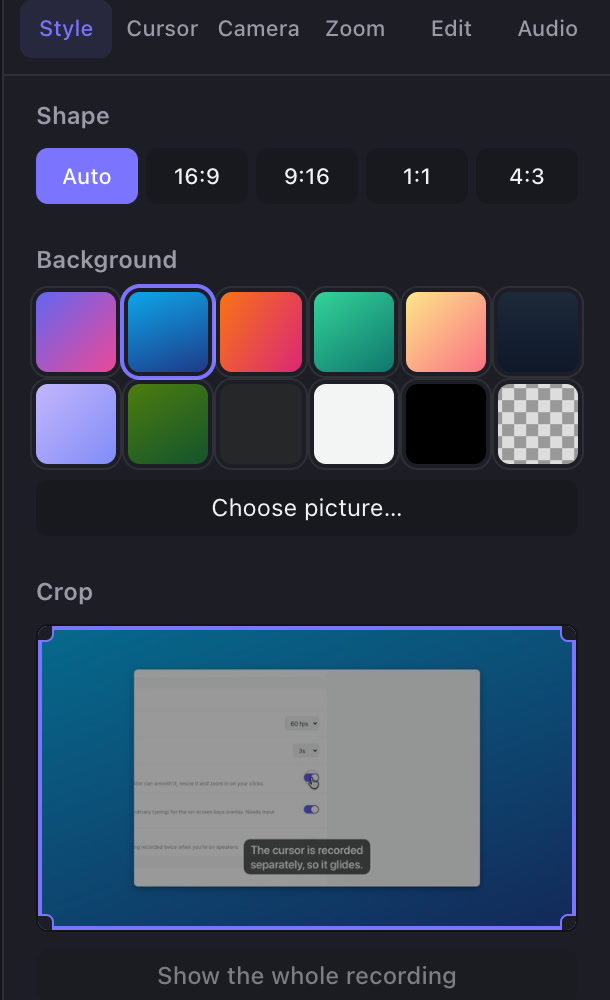
The editor’s Style panel: shape Auto, 16:9, 9:16, 1:1 and 4:3, twelve backgrounds, Choose picture, and a crop box
Background, shape, crop. Gradients, macOS wallpapers or your own picture; 16:9, 9:16, 1:1 or 4:3; an iPhone frame for phone recordings.
The timeline: three clips with a cut gap, one at 2x, and zooms at 2.0x, 1.8x and 2.2x below
Trim, split, speed up. Cut the pauses, play the slow parts at 2×.
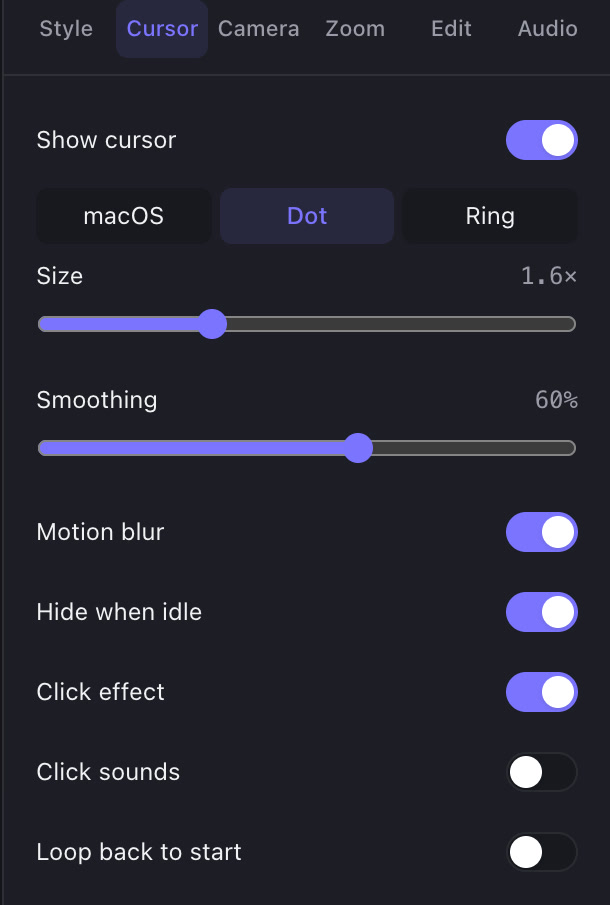
The editor’s Cursor panel: macOS, Dot or Ring, size, smoothing, motion blur, click effect, click sounds and loop back to start
A cursor that glides. Redrawn smooth as the macOS pointer, a dot or a ring, with click sounds. Shortcuts show as a pill.

Then it edits the boring parts.

One click each, and every change stays editable on the timeline.
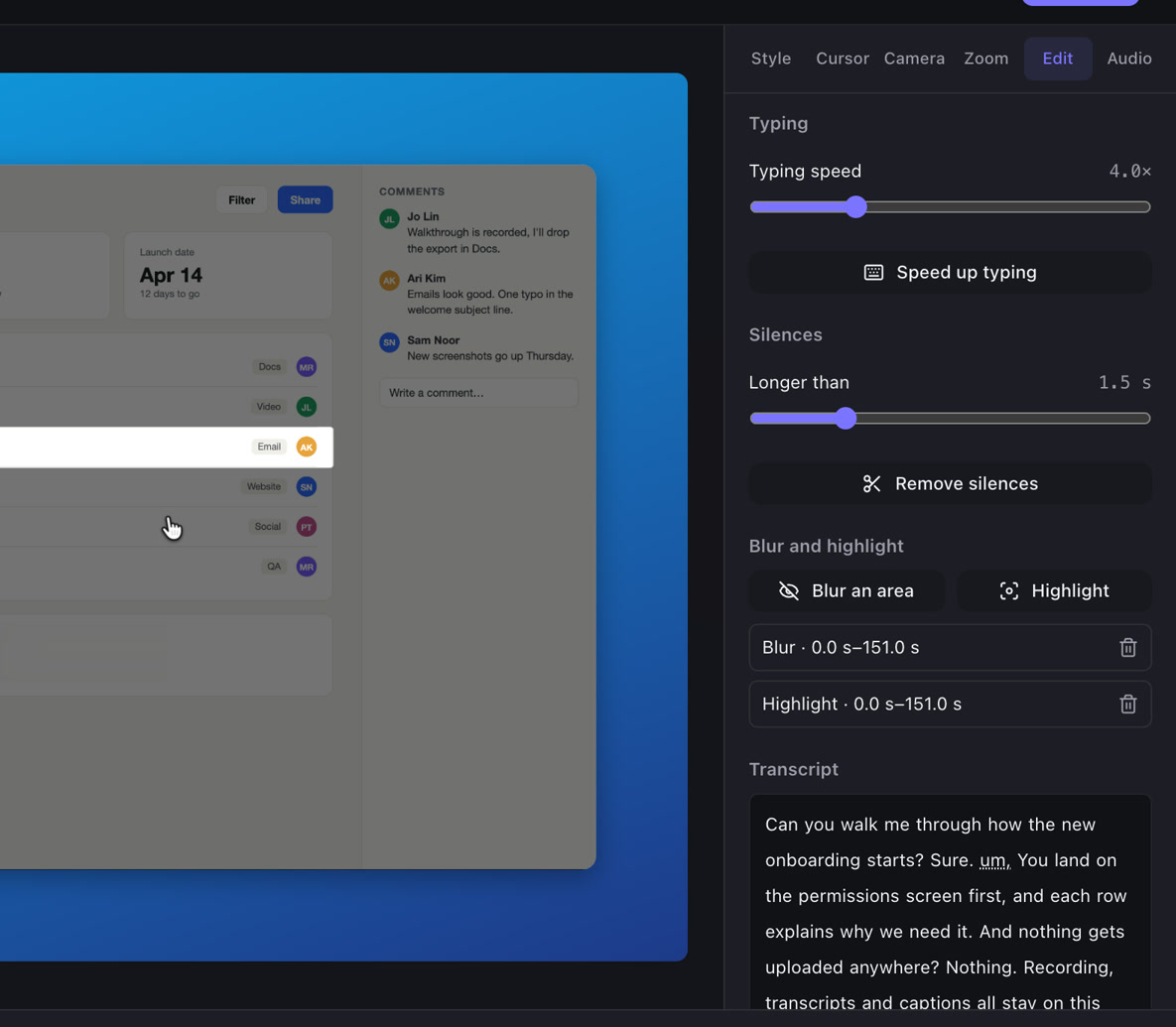
The editor’s Edit tab: speed up typing, remove silences, blur or highlight an area, and the transcript with words to cut
Edit by the words. Speed up typing, cut silences and “um”s, delete words from the transcript, blur or highlight an area.
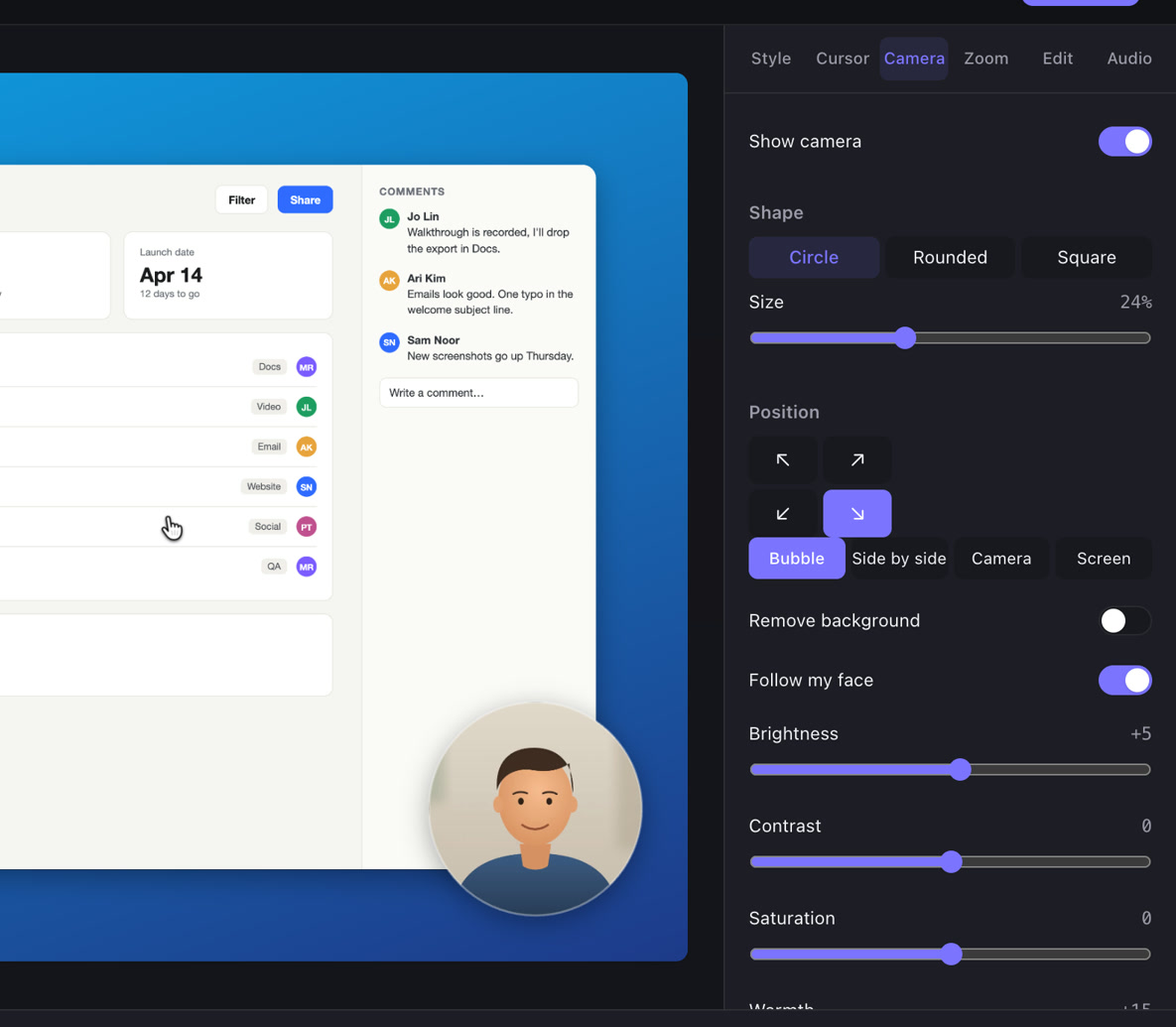
The editor’s Camera tab: a circle bubble, bubble, side by side or camera-only layouts, remove background, follow my face and colour sliders
Your camera, framed. A bubble, side by side or camera only, with background removal, face tracking and colour.
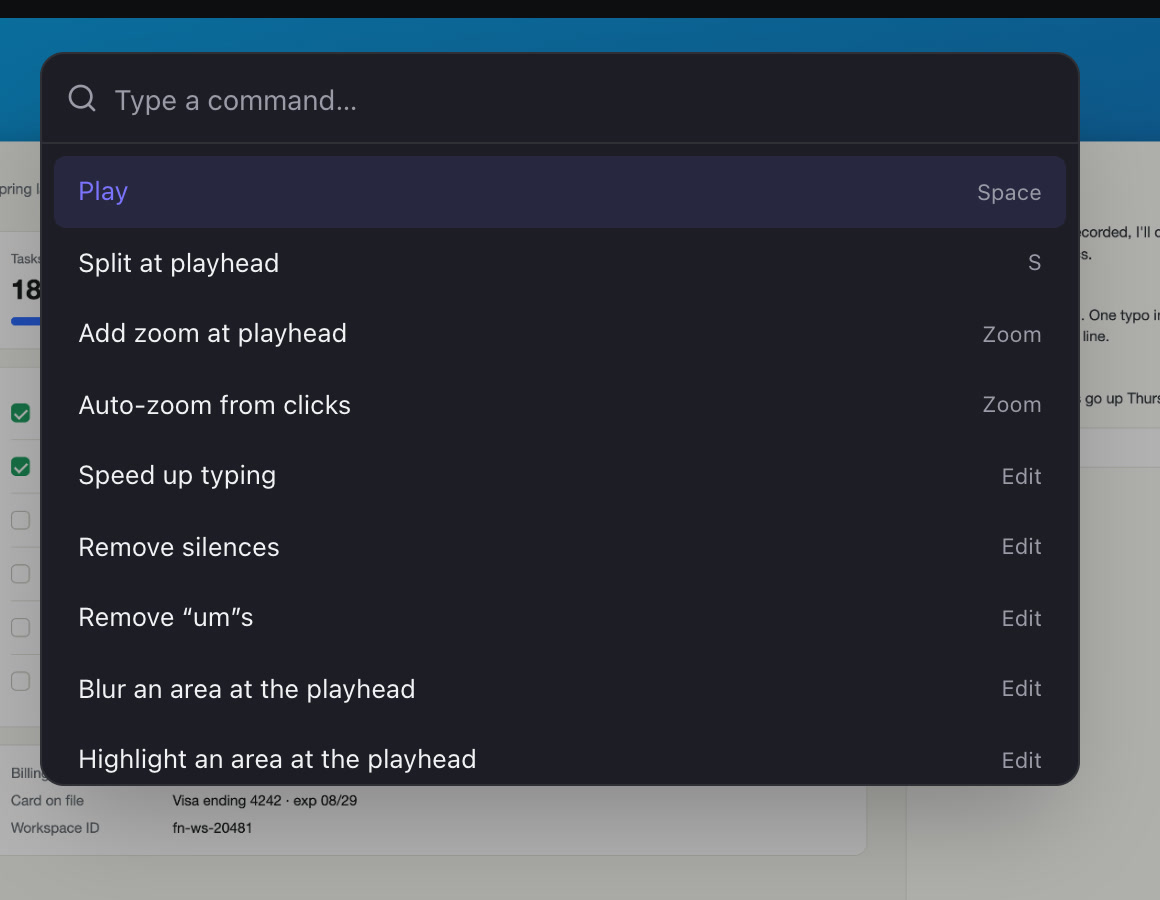
The command menu open over the editor, listing split, add zoom, auto-zoom, speed up typing, remove silences, remove ums, blur and highlight
Everything from the keyboard. ⌘K finds any command, from zooms to music to the cursor’s look.

See all of it in 90 seconds.

Every picture is a real Recora screen or a real Recora export.

Headphones hid the other side.

The built-in recorder hears only your microphone.

On headphones macOS screen recorder Recora
Your voice Microphone Its own track mono 48 kHz
Their voices Not recorded Recorded from your Mac’s output stereo 48 kHz
Afterwards One file, one voice Each side mixed, muted or transcribed apart

From the call to the export.

Three screens, all on your Mac, none of them waiting on a server.

Download for macOS
  1. A call starts. Recora asks.

    Google Meet, Zoom, Teams, Slack or FaceTime: it sees which app holds the microphone, then offers to record both sides.
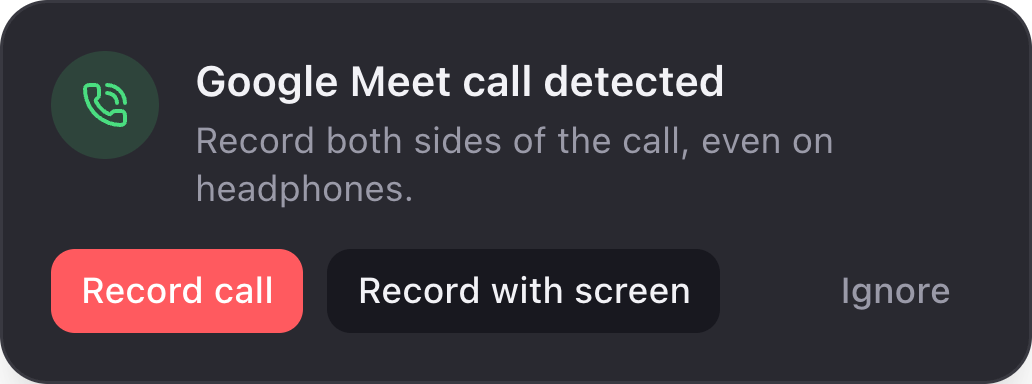
    Recora's corner card: Google Meet call detected, with Record call, Record with screen and Ignore
  2. Captions, in your words.

    Apple’s on-device speech engine writes the transcript. Click a line to jump there.
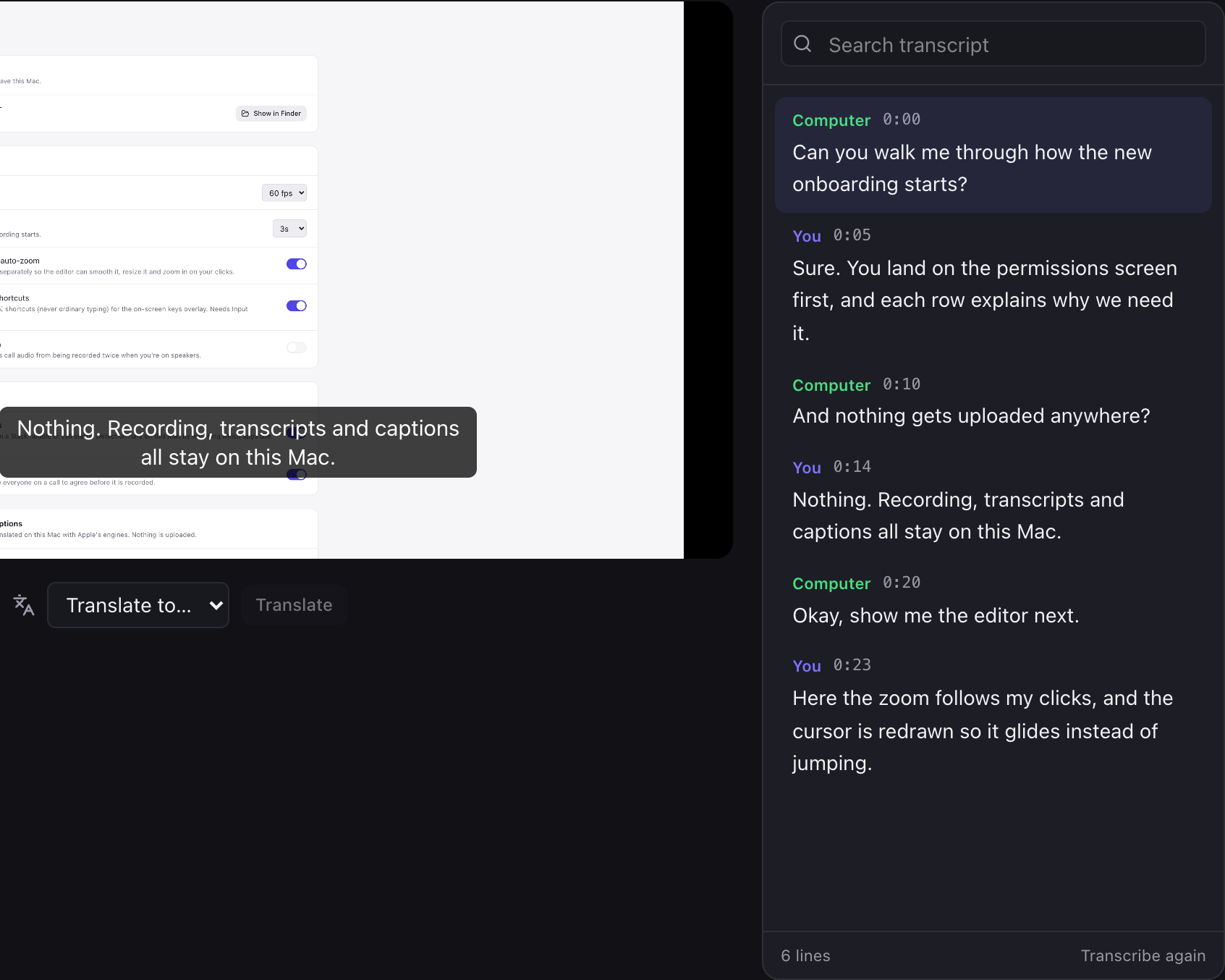
    A recording page with captions over the video and a transcript labelled You and Computer
  3. Export for wherever it’s going.

    Presets for YouTube, X, LinkedIn, Reels and TikTok, or pick MP4, MOV or GIF yourself, up to 4K at 60 fps.
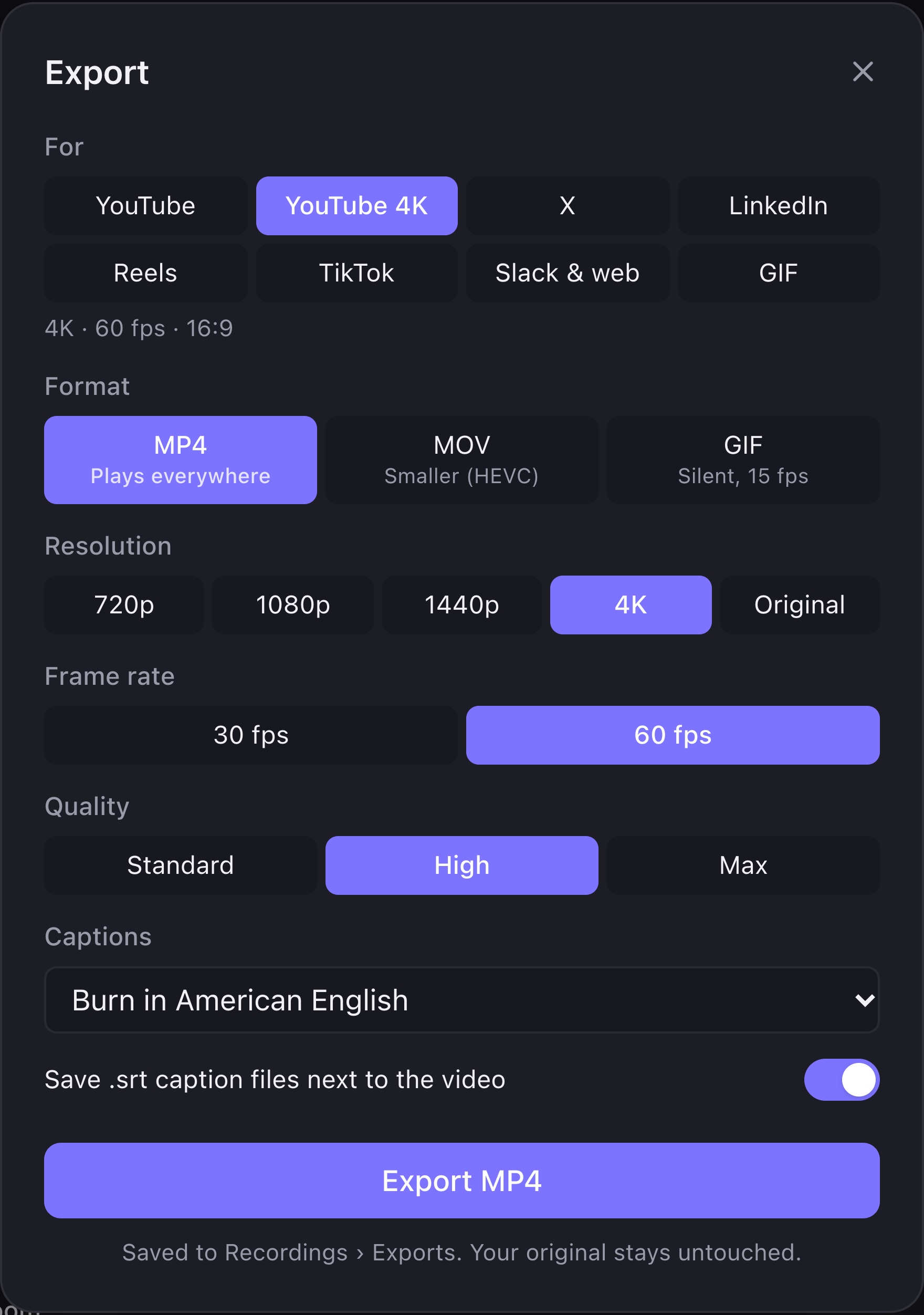
    The export dialog: presets for YouTube, YouTube 4K, X, LinkedIn, Reels, TikTok, Slack and web, and GIF, with format, resolution up to 4K, 30 or 60 fps, quality and burned-in captions

Plain files, kept on your Mac.

Every recording is one folder in Movies. Nothing is uploaded.

  • ~/Movies/Recora/Onboarding-walkthrough.recora/
  • recording.movScreen and each voice, on separate tracks
  • cursor.jsonlEvery pointer move and click
  • keys.jsonl⌘, ⌃ and ⌥ shortcuts, never typing
  • captions/en-US.srtCaptions, one file per language
  • editor.jsonYour edits; the original stays as recorded

What it needs

MacApple silicon, macOS 26 or later
PermissionsScreen Recording and Microphone; Camera for the webcam
Calls it noticesSlack huddles and calls
ExportsMP4, MOV and GIF, up to 4K at 60 fps

Three days free, then one plan.

Every plan starts with a 3-day free trial. Cancel before it ends and you won't be charged. Both plans include everything.

Monthly

$19/ month

Billed $19 every month.

3 days free, $0 today. Your first $19 is charged when the trial ends. Cancel before then and you pay nothing.

  • Every feature, on one Mac at a time
  • All updates included
  • Cancel any time

Yearly

Save $120 a year

$9/ month

Billed $108 once a year, about 53% less than Monthly.

3 days free, $0 today. Your first $108 is charged when the trial ends. Cancel before then and you pay nothing.

  • Every feature, on one Mac at a time
  • All updates included
  • Cancel any time

Both plans have recording, the editor, captions and 4K exports. See everything included

Record your next demo.

Download free trial
Recora’s recorder with a Slack call in progress banner above the Display, Window, Area, iPhone and Call sources